Account & billing
Everything about your account: signing in, billing, support, and account deletion.
The whole story: you can use CRAYON-C4 anonymously to sketch local diagrams, or sign in with an identity provider (Google, Microsoft, or others) to unlock cloud storage, team collaboration, and Pro benefits. After signing in, you verify your email address once, then choose your plan — Free for device-based work, or Pro for cloud projects and team sharing. Your settings page is your hub for managing subscription and support requests.
Signing in and signing out
How to sign in
On the home page or any public screen, click Sign in in the top-right corner. You are redirected to Auth0's Universal Login, which presents the identity providers available to you (typically Google, Microsoft, and others, depending on your organisation's configuration).
Choose a provider and complete the sign-in flow with that provider. You'll be redirected back to CRAYON-C4 and land on the Projects page.
Important: provider identity
Each identity provider — Google, Microsoft, etc. — gives you a separate account in CRAYON-C4, even if you use the same email address across them. If you sign in with Google one day and Microsoft the next, those are two different accounts with separate projects and subscriptions. Choose one provider and stick with it, or keep careful track of which one you use for which diagrams.
Signing out
Click your avatar (initials or profile picture) in the top-right corner. A dropdown menu appears with Profile and Log out. Click Log out to sign out. You'll be returned to the home page.
Email verification
The first time you sign in, your account is created with the email address from your identity provider. Before you can access cloud projects and other authenticated features, you must verify your email address.
You'll be redirected to the verification screen, which shows your email and a Resend verification email button. Check your inbox (and spam folder) for an email from CRAYON-C4 containing a verification link. Click the link to confirm your email.
Once you've clicked the verification link, come back to the app — the verification screen notices your verified status by itself and lets you continue, no sign-out needed.
If you don't receive the email, check your spam folder first, then click Resend verification email — a fresh verification link is sent to your address. You can request a new email once per minute (the button shows a countdown between sends). If resend reports that email isn't configured for this deployment, or you still can't find the message, contact support at support@crayon-c4.com and we'll verify your account.
Plans and capabilities
CRAYON-C4 offers three levels:
| Plan | You have… | Storage | Collaboration |
|---|---|---|---|
| Anonymous | No account | Device only (this browser) | No sharing |
| Free | Verified email | Device only, with JSON export/import | No cloud sync or sharing |
| Pro | Subscription | Cloud (any browser, any device) | Invite teammates by email, assign roles, audit log |
For organisations that want to run CRAYON-C4 on their own infrastructure under a license, an Enterprise (self-hosted) option is available on request — contact us.
Generating and viewing a model is unlimited on every plan. A model generated from a real codebase is often hundreds of elements across hundreds of diagrams, so no plan limits what you may hold: bring in a model of any size, open it, drill through every diagram, arrange it, and export it — on any plan, including anonymous. What the plan limits is what you may edit.
Each plan has editing and project limits (these are the current defaults — an administrator can adjust them, and the in-app pricing page always shows the live values):
| Limit | Anonymous | Free | Pro |
|---|---|---|---|
| Model elements you can edit (nodes + relationships) | 20 | 50 | 10,000 |
| Named projects | 5 (on this device) | 5 (on this device) | 30 (in the cloud) |
| Team members per project | 0 | 0 | 10 |
| Diagrams you can add per project | 3 | 7 | No limit |
The diagram count covers all three notations together — C4 diagrams, deployment environments and F4 boards.
When you reach a limit, the editor tells you rather than failing silently. Viewing, drilling, arranging and exporting are never affected, and deleting always stays available — so a large generated model can always be pruned down to the part you care about.
What you can do at each tier
Device-based work (Anonymous and Free) : Sketch diagrams locally, export as images and JSON. No sign-in required for anonymous; Free requires email verification.
Generate from code (every tier)
: Generate a model straight from your codebase with the crayon-c4 CLI or the VS Code extension, bring it into a project ("From code"), and refresh it later ("Update from code") without losing your manual edits. All of it is complimentary on every plan, including anonymous — the CLI and the extension run entirely on your own machine, and the AI enrichment passes drive an agent CLI you install yourself.
Backup and restore (every tier) : Export your project as JSON and re-import it on another machine, or store it in version control next to your code. Back up all and Restore in the projects hub do the same for every project at once. Your own data always round-trips, on any tier.
Cloud sync (Pro) : Projects live in the cloud. Open the same project from any browser on any device. Changes sync automatically; you click Save to cloud in the header to push to the server, or the app syncs at natural boundaries (blur, idle, tab hide, navigation).
Team collaboration (Pro) : Invite teammates by email with roles (Owner, Admin, Editor, Viewer). See an audit log of who changed what and when.
Full export (Pro) : Export as a beautiful Markdown or PDF document with custom branding and typography options. Anonymous and Free users can export as image or JSON only.
Architecture decisions (Pro) : Record architecture decisions (ADRs) linked to elements, relationships and deployments, and browse them on the Decisions page. Decisions you already have travel with your project through JSON export, import and backup on every plan — it is the management surfaces that need Pro.
Published read-only links (Pro) : Publish a cloud project as a revocable, optionally expiring link that anyone can open without an account.
Copy between projects (Pro) : Copy node styles or a whole diagram from one project and paste them into another. Exporting and importing a whole project file stays complimentary on every plan.
Version history (Pro) : Cloud projects keep recent snapshots so you can see how the model changed and step back to a recent state. Snapshots are kept for a limited time only — version history is a convenience, not a backup. Export your project regularly to keep your own backups.
What Pro costs
| Plan | Investment | Billed |
|---|---|---|
| Pro, monthly | €15.00 excl. VAT | Every month, in advance |
| Pro, yearly | €150.00 excl. VAT | Every year — two months complimentary |
Pro is charged per account, not per person: collaborators on your projects are included up to the member limit, at no extra cost.
Your investment excludes VAT. VAT is added at checkout at the rate of your own country — for a private customer in the Netherlands that is €18.15 per month including 21% Dutch VAT. If you're a business elsewhere in the EU and you supply a valid VAT number during checkout, you're reverse-charged and pay no VAT to us. The exact amount is always shown before you confirm.
Upgrading to Pro
To upgrade, open Settings (click your avatar, then Profile) and find the Subscription section. If you're on Free, you'll see the investment, a monthly/yearly choice, and a blue Upgrade to Pro button. Pick the billing period you want, then click Upgrade to Pro.
You'll be taken to Stripe Checkout. You'll be asked for a billing address — that's what determines the VAT rate — and there's a field for a VAT number if you're buying as a business, and one for a promotion code if you have one. Complete payment with a card (Visa, Mastercard, American Express, etc.). When payment succeeds, you'll return to Settings and Pro benefits unlock immediately.
If you see an orange "Test mode — no real payments" banner on the pricing, checkout, or settings page, billing isn't live for your deployment yet: no card is charged, and completing checkout won't create a real subscription. This is expected, not an error — contact support if you want to upgrade and the banner is still showing.
Your profile
Open Settings (click your avatar, then Profile). The page opens with a profile card: your avatar or initials, your name, the email you're signed in with — carrying a green Verified check once your address is confirmed — and which identity provider you signed in with. That last line is the quickest way to check the provider-identity pitfall above: if your projects seem missing, compare it with the provider you used last time.
Managing your subscription
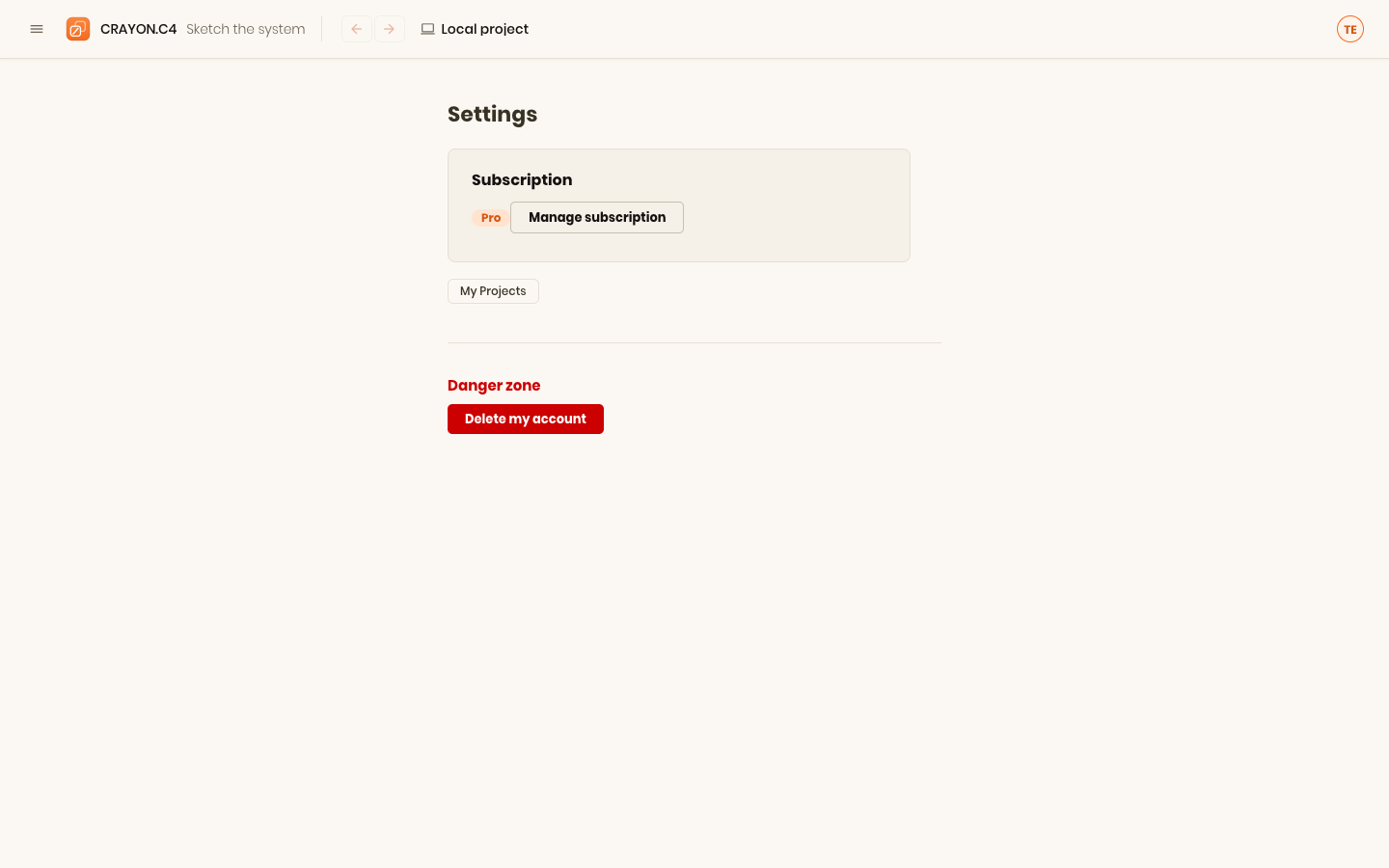
Open Settings and scroll to Subscription. Here you see:
- Current plan — Anonymous, Free, or Pro
- Renewal date — for Pro only, the next billing date and days remaining (e.g., "Renews on June 15, 2024 (12 days left)")
- Manage subscription — Pro only, a blue button that opens the Stripe billing portal
Click Manage subscription to access the Stripe portal in a new tab. There you can:
- Update your payment method
- View past invoices
- Cancel your subscription (you keep access until the end of the current period)
If your payment fails, a warning appears in the Subscription panel: "Payment failed — your Pro access expires soon. Update your payment method to keep access." Open the portal and add a valid card.
Cancelling Pro
To cancel, click Manage subscription, then find the Cancel subscription button in the Stripe portal. You'll keep access until the end of the current billing period; after that, you're downgraded to Free.
Cancelling never deletes anything. Cloud projects become read-only — you keep them, and you can still export every one of them in full — and they become editable again if you subscribe again. If you're a consumer in the EU you also have a 14-day right of withdrawal; see the terms of service.
If you want to cancel but keep access to your cloud projects, make sure they're transferred to another owner or converted to local projects before the cancellation takes effect.
Deleting your account
To delete your account, open Settings and scroll to the bottom to the Danger zone section. Click Delete my account.
You'll be asked to resolve all projects you own. For each one, choose:
- Delete project — the project and all its diagrams are permanently removed
- Transfer to [teammate] — if there are other members, you can transfer ownership to one of them
Once you've decided what to do with all your owned projects, click Confirm deletion. Your account, all personal data, and any deleted projects are permanently removed. This action is irreversible.
If you have no owned projects, you can delete immediately.
Getting help
The Support page is your gateway to help. Open the app menu (hamburger icon in the top-left or click the CRAYON-C4 mark), then click Support. You'll see a form with two fields:
- Your email address — pre-filled if you're signed in
- Message — describe what happened, what you expected, and any steps to reproduce
When you click Send message, the form automatically attaches diagnostics:
- Your CRAYON-C4 app version
- The current page URL (where the problem occurred)
- Your account ID (if signed in; "anonymous" if not)
This information helps us reproduce and fix issues faster. Your input is preserved if the send fails, so you can retry without re-typing.
What to expect
When you send a message, you'll see a confirmation: "Thanks for reaching out. We'll get back to you as soon as we can." We aim to reply within 24 hours during business hours. Check the email address you provided for our response.
Give feedback
Separate from support, the app menu also carries Give feedback — a short feedback page where you can leave a quick note or answer a brief questionnaire about the product. You need to be signed in, and you can submit once per day. Use it for opinions and suggestions; use Support for problems that need an answer.
Where next
- Projects & sharing — how to create, save, and share projects.
- Troubleshooting — if something looks wrong or an import fails.