Export diagrams
Several export formats serve different audiences. Diagram images go into slides and wikis. The full-project document (Markdown or PDF) is a handout for stakeholders. JSON is the model file for backup and versioning. Structurizr DSL is a portable text workspace for the Structurizr ecosystem. Hand-authored JSON via the published schema lets you write or generate models without the UI.
Diagram images (all tiers)
Every diagram viewer has a Download button in the top bar. Click it to export that one diagram as an image:
- SVG — vector format; scales cleanly to any size, stays crisp on slides and in documents
- PNG — raster format; ready to embed anywhere, no additional tooling
The image shows exactly what you see on screen. Both formats are available on every tier — no paywall.
Styling diagram images (Pro)
When you export a diagram image, the appearance reflects your project's current theme — the background color, border colors, and typography. Pro projects can edit the export themes in the Appearance tab of the export screen, so your diagrams match your organization's look. Free and anonymous projects use the default theme.
Export Theme Manager
The Appearance tab on the export screen (Pro only) lets you create and manage multiple named themes for export.
Theme presets — a dropdown shows all your themes. Click the theme name to rename it, or use the buttons to:
- Add — create a new theme (copy of the current one)
- Delete — remove the active theme (keep at least one)
- Copy — copy all themes to the clipboard to paste into another project
- Paste — paste themes from another project's clipboard
Diagram image background — controls how diagrams appear in exports:
- Site — match the on-screen canvas color
- Transparent — no background; SVG and PNG preserve transparency
- Color — a custom color (enter a hex value like
#ffffffor use the color picker)
There's also a checkbox to Include canvas grid (appears in F4 and deployment diagrams).
Detail-table colours — when your document includes details, you can control the appearance of element and relationship tables:
- Site — use the site's paper-theme colors
- Custom — pick individual colors for header fill, header text, cell fill, cell text, alternate row fill, and borders
All theme settings are independent of your on-screen editor theme — changes here affect only exported diagrams and documents, not what you see while editing.
Full-project document (Pro)
Turn your entire project into a Markdown bundle or print-ready PDF for sharing with stakeholders or archiving.
Step 1 — Open the export screen
Click Export on the project detail page and pick a document format. (JSON export is available on every tier; the Markdown and PDF document formats are Pro.)
Step 2 — Choose your format
Select Markdown bundle or PDF. The Markdown bundle is a .zip file containing a README, a subfolder of diagram images, and the Markdown text for each layer. The PDF is a single print-ready file.
Step 3 — Configure the export (optional)
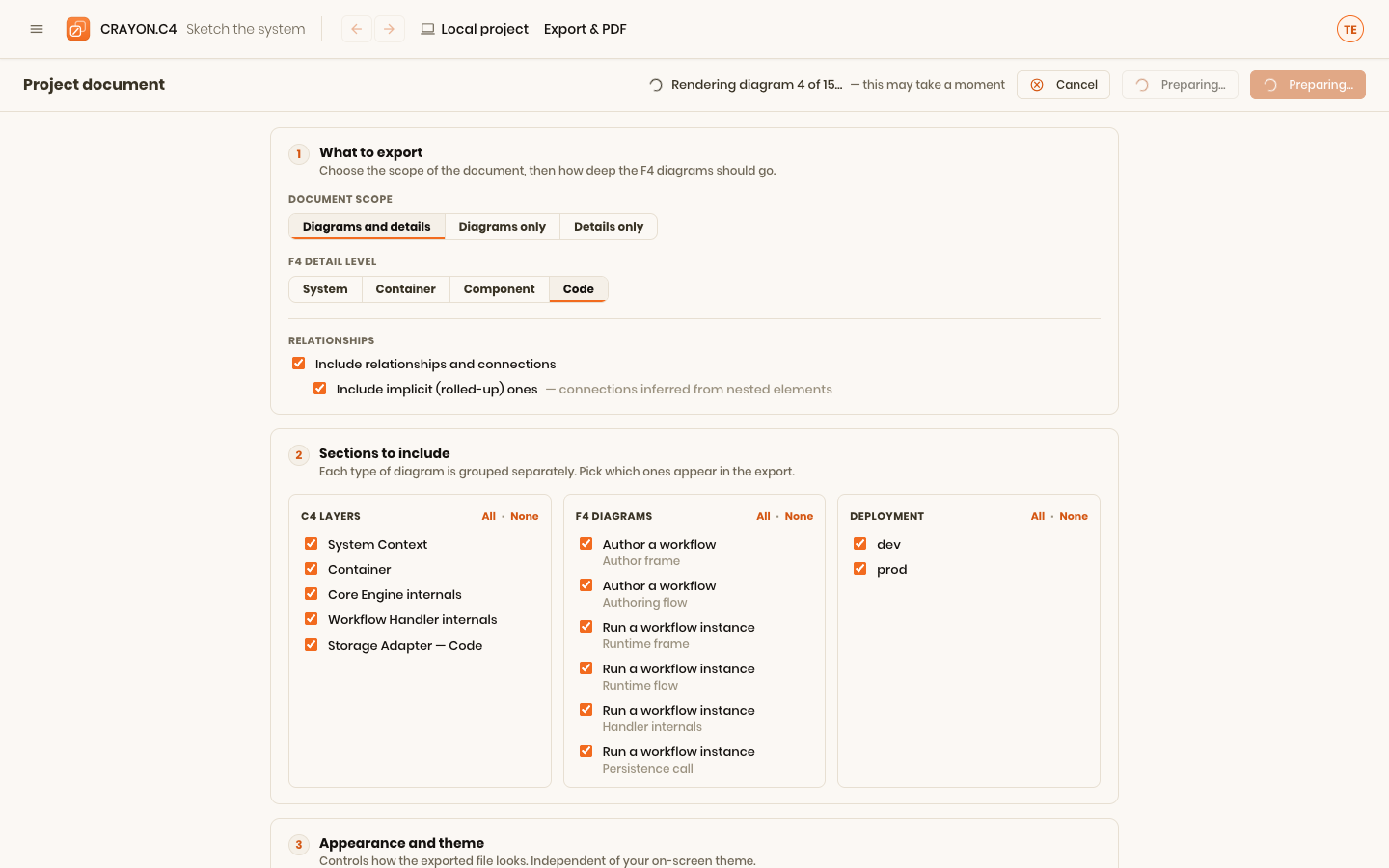
Before exporting, you can refine the document with the options panel — three tabs, one visible at a time:
- What to export — three groups of settings:
- Document — the scope: Diagrams and details (all diagrams plus descriptions), Diagrams only (visual layouts without text), or Details only (narrative and relationships without diagram images). Plus an optional notation legend, which explains only the diagram types this export actually contains.
- Diagram images — the format, SVG (vector) or PNG (picture); SVG is the default and opens in Illustrator, Figma, Inkscape and GitHub. When F4 diagrams are included you also pick the F4 detail level (System, Container, Component, or Code) and the F4 visibility mode (Ghost or Hide), so the printed picture matches what you saw.
- Written detail — C4 element detail, relationships, and F4 activities and connections (all three below)
- Sections — toggle each C4 layer, F4 diagram, or deployment environment individually; use All / None buttons to select a whole category at once
- Appearance — the export themes: diagram background, canvas grid, and detail-table colours (see Export Theme Manager above)
Step 4 — Generate and download
The app builds the document from the live model, so it's always up to date — a short "Preparing…" runs while every diagram renders. Then click Download Markdown (.zip) for the bundle, or Print / Save as PDF for the PDF.
The document renders from your live model, so the handout always matches the diagrams in the editor. Detail tables follow the model too — for example, an F4 connection table gains an Order column ("1 of 3") wherever a step fans out more than one outgoing connection, matching the order you set in the editor.
How much is written out
Three settings on the What to export tab control how much prose sits beside the pictures. Each defaults to the fullest option, so an export you don't configure is exactly what it always was.
C4 element detail — a C4 model draws the same element on several diagrams by design, so its type, technology and description get stated again under every one of them. On the demo that is 12 element rows for 8 elements; the deeper the model, the more of the document is that repetition.
| Choice | What the document does |
|---|---|
| On every diagram | Each diagram lists its own elements in full — an element on three diagrams is described three times |
| Once, up front | Every element is described once in an Elements section before the diagrams — including, per element, which diagrams it appears on — and each diagram then just names the ones it shows |
| Up front only | The same catalog, and the diagrams list no elements at all |
F4 activities and connections — an F4 diagram already shows its steps and the arrows between them, so a table naming every one of them again adds nothing unless it carries prose the picture couldn't fit.
| Choice | What the document does |
|---|---|
| In full | Every activity and connection is listed under its diagram |
| Only described | Only activities with a description (or a described boundary event), and connections with a label and/or description |
| None | No listings — the F4 diagrams speak for themselves |
Relationships — the Include relationships and connections checkbox governs the connection tables, and when it's on, Rolled-up relationships decides how much of the inherited detail comes with them: listed on every diagram they appear on, only on the first, or defined only (relationships whose own elements are both on the diagram).
JSON model file (free and Pro)
Export the raw model as a JSON file for backup, moving between machines, and versioning in a repository.
Open the project detail page, click Export, and choose JSON model file. You get a .json file containing every node, layer, relationship, and diagram choice.
Use JSON export to:
- Back up before big restructuring
- Move work between browsers or machines
- Version the model in a repository next to the code it describes — diagram changes then show up in the same review as code changes
- Collaborate in a code editor — check the model file into Git and use standard code-review tools to discuss changes
The file is written to be diffable: the same project always serializes to the same bytes, architecture content, diagram layout and your own device's view preferences are kept in separate, clearly ordered sections, and positions round to whole pixels. Two people editing different parts of the model produce a small, readable diff instead of a wall of reordered JSON.
See Manage projects — JSON backup and import for the import flow.
Structurizr DSL (free and Pro)
Export your project as a Structurizr DSL workspace — a .dsl text file readable by Structurizr Lite, Structurizr Cloud, and any other DSL-aware tool. Open the project detail page, click Export, and choose Export Structurizr DSL. You can import one the same way — pick a .dsl file under New project → From file — or paste DSL text straight into an existing project's page to add elements without starting over.
This is a portable, but lossy, format: element structure, relationships, deployment, groups and styles all survive; F4 flows translate onto dynamic views at the ELEMENT level (individual activities, lanes and boundary events don't); notes, tags and exact layout have no equivalent at all. A project with any decisions downloads as a .zip bundle instead of a plain .dsl, carrying them alongside it. See Structurizr DSL for exactly what's supported, what's restricted, and worked examples of every direction.
Hand-authored and generated models
The JSON Schema published at /schema/v1/crayon-c4.schema.json defines exactly what a valid CRAYON-C4 project looks like. With the schema, you can:
- Write a model file by hand in your editor
- Generate one from your codebase using CLI tools
- Have an AI assistant generate a scaffold to edit
The schema is a JSON Schema Draft 2020-12 file — compatible with VS Code schema validation, online schema validators, and any tool that reads JSON Schema.
Once you have a valid model .json file, import it into CRAYON-C4 as a new project (Projects → New project → From file). The app validates the file before loading it.
Point a local AI tool at these URLs
Everything an AI needs to generate or edit a model — or a decisions file — offline is published at stable, unauthenticated URLs, always on, no sign-in required:
| File | URL | Purpose |
|---|---|---|
| Project schema | /schema/v1/crayon-c4.schema.json | The full JSON Schema for a project (c4 / deployCanvas / f4 slices). |
| Decisions schema | /schema/v1/crayon-c4-decisions.schema.json | The schema for a stand-alone decisions (ADR) file. |
| Authoring guide | /schema/v1/AUTHORING-GUIDE.md | Paste this into an AI to have it generate a correct project model — hard rules, the inlined schema, and worked examples. |
| Decisions guide | /schema/v1/DECISIONS-GUIDE.md | The same, for generating or updating a decisions file — id rules, the locked-once-accepted rule, and a worked example. |
| Example models | /schema/v1/examples/c4-only.crayon-c4.json, /schema/v1/examples/full-stack.crayon-c4.json | Complete, validated reference files to copy shapes from. |
These are plain static files under the app's own domain (e.g. https://crayon-c4.com/schema/v1/AUTHORING-GUIDE.md) — no sign-in, no API key, no rate limit. How you get one into your AI's prompt depends on whether that tool can reach the internet on its own.
If your tool can fetch URLs itself — an agent with a web-fetch or browsing tool, an MCP server, a coding assistant with internet access — just give it the URL and ask it to fetch and follow it, e.g.:
Fetch
https://crayon-c4.com/schema/v1/AUTHORING-GUIDE.mdand follow it to generate a CRAYON-C4 model for the following system: …
It will always get the current schema, since the URL is live.
If it can't — a fully offline local model, a chat UI with no tools enabled, a CLI script with no network access, or anything with no connection or MCP to CRAYON-C4 — the tool cannot reach the URL, so you have to bring the file to it yourself:
- Download the guide once, from any machine that does have internet access:
(A browser "Save As" works just as well — these are plain text.)curl -o AUTHORING-GUIDE.md https://crayon-c4.com/schema/v1/AUTHORING-GUIDE.md # or, for a decisions file: curl -o DECISIONS-GUIDE.md https://crayon-c4.com/schema/v1/DECISIONS-GUIDE.md - Paste the whole file as-is, as your first message (or system prompt) — both guides are already written as the prompt itself (they open with "You are generating…", addressed directly to the AI), so there's nothing to summarize or trim. Don't just link to it or describe it; the model has no way to open a link.
- On the next message, describe your system (or your decision) and ask it to produce the JSON.
The guide is self-contained (schema, rules, and worked examples all inline), so pasting the raw text is lossless — nothing outside the file is required for it to work. Re-download it occasionally to pick up schema changes; a copy you saved once will not update itself.
Once you have a valid decisions .json file, import it from an open project's Decisions screen (Import…) — see Decisions.
Tip: version diagrams with code
Committing the JSON export (or the Markdown bundle) into your repository's docs folder keeps the model next to the system it describes — reviewers see diagram changes in the same pull request as the code that prompted them.
The published JSON Schema makes hand-authoring or AI-generation straightforward, so models stay in sync with code reviews even if you're not using the web app.
Where next
- Manage projects — where the model itself lives.
- Structurizr DSL — the full import/export reference, restrictions, and worked examples.
- Share & collaborate — when the audience should join the project instead.