Manage projects
A project is everything you've modeled — structure, deployment, and flows together. This page covers where projects live and how to manage them.
Where your work lives
The tier you're on determines where your work is stored and how you access it:
| You are… | Your projects live… | Limits (typical) |
|---|---|---|
| Anonymous (no account) | In this browser only | Small diagrams |
| Free account | In this browser, with JSON export/import | Bigger diagrams, up to 5 named projects |
| Pro | In the cloud — any browser, any machine | Large diagrams, more projects, team benefits |
Anonymous and free work is saved automatically as you edit — but it belongs to this browser on this machine. Clearing browser data clears your work; use JSON export as your backup.
The projects hub
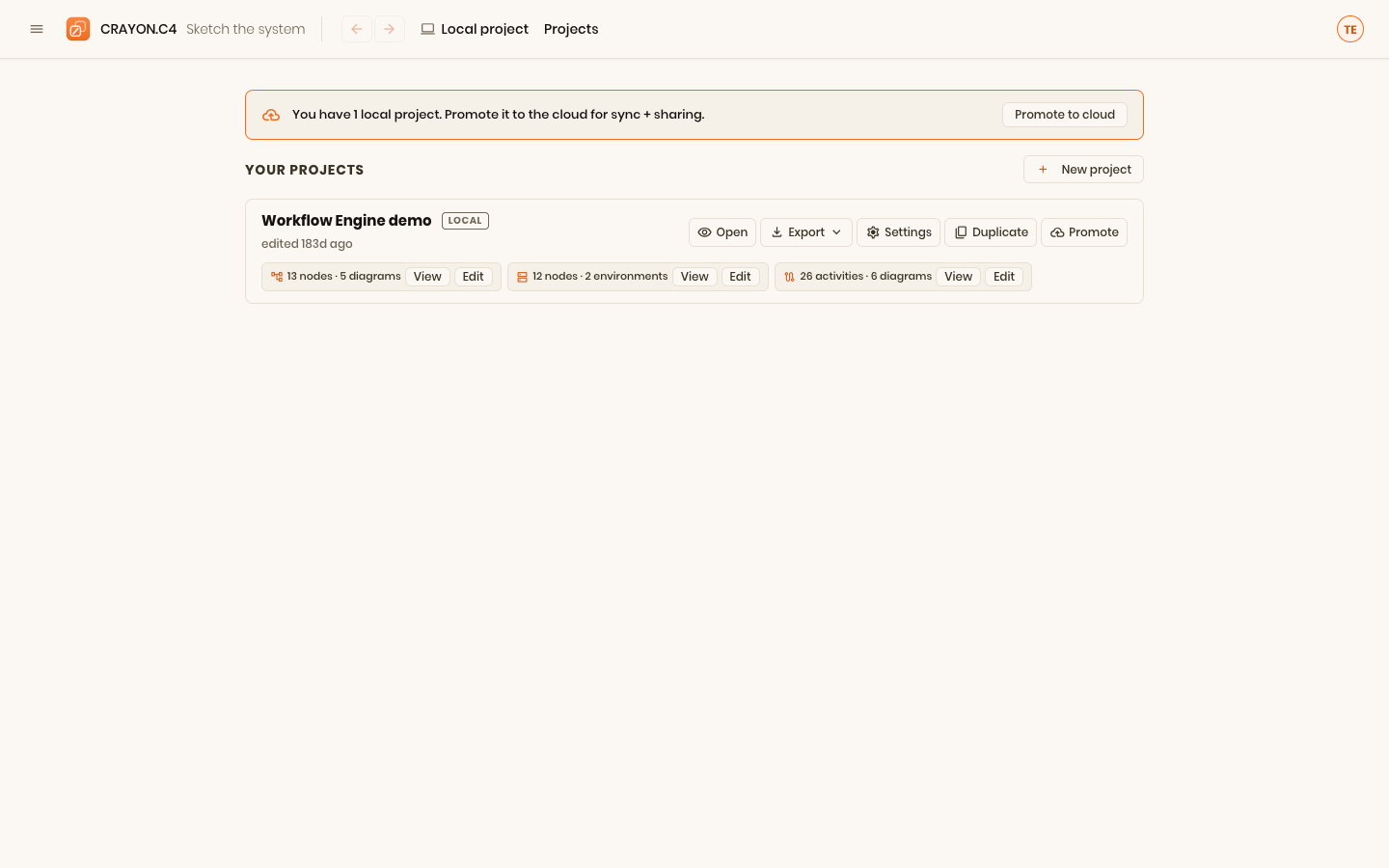
Open Projects from the menu. Here you can create, open, rename, duplicate, or delete your projects. Clicking a project opens it for editing.
For quick switching you don't even need the hub: the hamburger menu (top-left) lists your three most recently updated projects right under Projects, with the active one marked. Clicking a project there makes it the active project and opens its detail page; a +N more… row takes you to the full hub when you have more.
Along the top of the list sit New project, Back up all, and Restore — the latter two back up or restore your whole account in one step, on every tier (see Back up and restore all projects).
Create a new project
When you create a project, the New Project modal offers four sources:
Quick open from the projects hub
Each project row displays three model chips — C4 Model, D4 Deployment, and F4 Processes. Each chip shows a summary (how many nodes or activities, and how many diagrams), plus two buttons:
- View — open the diagram in read-only mode
- Edit — open the diagram editor (hidden if your role is Viewer-only)
Use these shortcuts to jump directly into a specific model without opening the detail page.
Project detail page
Click a project name to open its detail page at /projects/[id]. Here you can:
- Rename the project
- Delete the project (irreversible). Deleting the active project leaves the diagram screens showing a Create a project card until you open or create another one — nothing is loaded in its place automatically
- Export the project — choose JSON (model file, every tier), Structurizr DSL (
.dslworkspace, every tier), Markdown bundle, or PDF (the document exports are Pro) - Promote to cloud (local projects only) — move a local project to your cloud account
- Update from code — refresh the model from a newly generated model file, reviewing any adds, changes, or removals before applying (works for local and cloud projects)
- Version history & restore (cloud projects) — view recent snapshots and revert to one. Snapshots are kept for a limited time only; export regularly for real backups
Updating from code
First regenerate the model file from your repository (with the crayon-c4 CLI or the VS Code extension — the web app never scans your codebase itself). Then click Update from code, pick the new model file, and the app compares it to your current model. A review modal shows every add, change, and removal:
Conflicts appear first — these are elements where both you and the code made changes. For each conflict (usually a rename), you pick which version to keep:
- Keep mine — use your hand-authored name
- Take code — accept the code's name
Removals are shown as an opt-in list. Check the Remove box only for elements you want to delete — code-derived elements are deletable, but hand-authored ones are always preserved. By default, removals are unchecked, so your manual edits stay safe.
Text from the file appears next, whenever the file carries a description, short description, or connection label different from the one already on the element. These are offered, not demanded: the standing answer is Keep mine, and Take all from the file flips the whole list at once. This is how text you added to the model file by hand — for example after an AI enrichment pass — reaches a project that already has some.
Anywhere the project had nothing written, the file's text is simply used, and the review says so. And a file that says nothing about a field never blanks out what you wrote.
Adds and modifications are shown for review but don't require input — adds land automatically, and modifications apply the code changes to fields you haven't edited.
Once all conflicts are resolved, click Apply update to merge the changes into your project.
Save and sync
How your work is saved depends on where it lives.
Local projects (anonymous and free accounts) autosave on-device as you edit. There's nothing to click — every change is saved to your browser's local storage within a few hundred milliseconds.
Cloud projects (Pro) follow a checkout model: you edit on-device, and changes are saved locally first. To push changes to the cloud, click Save to cloud — the orange button in the header, just before your profile menu. It shows a subtle pulsing halo whenever you have unsaved cloud changes. The app confirms the save succeeded or alerts you if there's a conflict.
In addition to explicit Save, cloud projects also push at natural boundaries: when you blur the editor, hide the tab, stay idle for a while, or navigate away. These background pushes are quiet, and they only ever send your work up — if someone saved before you, the push stands down and the pill flips to Remote newer instead.
Nothing is ever pulled onto your screen automatically. A teammate's save shows up as the Remote newer pill; what you're looking at changes only when you ask — Load latest, a Save with nothing to save, or reopening the project.
Save doubles as sync. Pressing Save to cloud when you have nothing to save checks the cloud instead: if a newer version exists, it's loaded onto this device; if you're already current, a short note says so. So "am I looking at the latest?" is always one click on the button you already know.
The save indicator
Alongside the Save to cloud button, a colored pill in the top bar shows your save state. When the cloud copy is ahead of this device, a Load latest or Review & save button appears beside the pill (see Remote newer below):
- Saved — all changes are on the cloud
- Dirty — you have unsaved changes on this device
- Saving — a save is in progress
- Save failed — the last save didn't succeed (you can retry, or save as a local copy if the cloud project is no longer available)
- Remote newer — the cloud has newer changes. If you have no local edits, a Load latest button appears next to the pill — click it to restore this device from the newer cloud version. If you do have unsaved local edits, the button instead reads Review & save and opens the resolve-changes modal so nothing is overwritten silently
If a save fails because the project was deleted or your membership ended, you can choose to keep the work as a local project so you don't lose your edits.
When your save meets changes someone else pushed in the meantime, the app never overwrites either side silently — see Sync, merges & conflicts for how the two combine and what each choice in the resolve dialog costs.
Promote a local project to the cloud
Open a local project's detail page and click Promote to cloud. Your work moves to your Pro account's cloud storage and is now accessible from any browser or machine. You can then invite teammates to edit with you.
If your plan no longer includes cloud projects
Cloud projects need a Pro plan to change. They never need one to keep.
If your subscription ends, every cloud project you are a member of stays on your projects hub, marked Read-only. Nothing is deleted, and you keep:
- Opening and reading it — the View links on the row work as before
- Downloading it as JSON, and including it in a full backup
- Getting it back exactly as it was by resubscribing
What you cannot do is edit it where it lives, so the row's Edit links are not offered — an editor whose every save is refused is a dead end.
Make it local to work on it
The row carries a Make local button (also on the project's detail page). It copies the project onto this device as a new local project you can edit straight away, named "‹project› (local copy)".
Before it copies, it tells you three things:
- Your cloud copy stays exactly as it is. This is a copy down, never a move — nothing in the cloud is deleted or changed.
- It uses one of your local project slots, and says how many are left.
- Whether the project is larger than your plan's element limit. If it is, everything is kept and nothing is lost. The project opens normally: you can read every diagram, drill through the whole model, rearrange it however you like, and export images, JSON and backups. What pauses is changing the model itself — adding, renaming, re-typing, re-parenting, connecting and restyling — until you delete enough elements to come back under the limit, or upgrade. Deleting always works, so pruning a large generated model down to the part you care about is always available to you.
If you were already in an editor when your plan changed, the save bar offers the same thing as Keep as local project — that one keeps the edits you had just made, rather than the last saved cloud version.
Update from code
Open the project detail page and click Update from code. This refreshes your model from a regenerated model file:
- Regenerate the model file from your repository (CLI or VS Code extension), then pick it in the file dialog
- A review screen shows adds, changes, and removals
- You pick which changes to apply (resolve any conflicts where code and you both renamed the same element)
- Click Apply update to merge the changes into your project — local projects update in place; cloud projects stage the update on-device until you Save
This keeps your model in sync as the code evolves, without losing your manual descriptions or diagram layouts — and when you want the file's text, the review's Text from the file section is where you take it.
JSON backup and import
Export your whole project as a single JSON file, and import one back anytime. The JSON holds the complete model — every node, layer, relationship, and layout choice.
Use JSON export to:
- Back up before big restructuring
- Move work between browsers or machines
- Version the model file in a repository next to the code it describes — diagram changes then show up in the same review as code changes
- Hand-author or generate a model file using the published JSON schema
To export, open the project detail page, click Export, and choose JSON model file. To import, create a new project and select From file. Both directions are available on every tier.
Importing validates the file first — a malformed file is reported, not half-loaded. See Troubleshooting if an import is refused.
Push to GitHub
A project can be pushed into a Git repository as a single commit, so the model lives next to the code it describes and changes arrive through your normal review.
- In Settings, connect your GitHub account. This is optional and separate from how you sign in; CRAYON-C4 never stores your GitHub token.
- On the project's detail page, link the project to a repository, a branch and a folder.
- Choose Push to GitHub, write a commit message, and confirm.
What gets written is the same diff-friendly project JSON as JSON export, plus one markdown file per decision — so a push and a download are the same bytes.
- Pushes go to a dedicated branch (
crayon/<project>by default), created from the repository's default branch, with an optional pull request. Your main branch is never written to directly. - Only the linked folder is touched. Pushing a project that has not changed reports "nothing to push" rather than making an empty commit.
- If the branch changed on GitHub since your last push, the push stops and you choose: push to a new branch, overwrite the folder on that branch, or cancel.
- Disconnect in Settings removes the connection and clears the repository links saved in your browser.
Push only: nothing is pulled back from the repository, and only GitHub is supported. Git sync is switched on per deployment — where it is not, none of this appears.
Back up and restore all projects
Beyond exporting a single project, you can back up every project at once and restore them later — a safety net for your whole account, not just one model. Available on every tier.
- Back up all — click Back up all in the hub toolbar to download one backup file (
crayon-c4-backup-<date>.json) containing every project you can see: all of your local projects plus — on Pro — every cloud project on your account. Store it somewhere safe, or commit it alongside your code. - Restore — click Restore, choose a backup file, then review the projects it holds. Every project is listed with a checkbox (all selected by default); tick the ones you want and click Restore.
A few things to know about restore:
- It never overwrites. Restored projects always come back as new local projects, so a restore can't clobber work you already have. Rename or delete the originals afterwards if you only wanted the restored copies.
- It respects your project limit. Each restored project counts toward your local-project limit. If a restore would exceed it, the projects that fit are restored and the rest are reported as skipped — promote some to the cloud to free space, then restore again.
- It validates every project. Each project in the backup is checked the same way an imported file is. A single corrupt project — or one made with a newer version of CRAYON-C4 — is flagged and skipped, and the rest restore normally.
Where next
- Share & collaborate — work with others on one project.
- Export diagrams — images, Markdown, PDF.