Perspectives in a description
A description usually has to serve several readers at once. A product manager wants to know what an element does; an SRE wants to know how it behaves at three in the morning; a security reviewer wants to know what crosses the trust boundary. Written as one block of prose, each of them reads three paragraphs that are not for them — so most descriptions end up written for nobody, or not written at all.
Perspectives let one description hold all of those, each under its own name, without adding a single field to your model. This page walks through creating them, what belongs in each, and what happens to them everywhere else.
What a perspective is
The idea comes from Philippe Kruchten's 4+1 architectural view model (1995): an architecture is best described through four concurrent views plus the scenarios that tie them together.
| Perspective | Answers | Written for |
|---|---|---|
| Logical | What does it do for the people who use it? | Product, analysts, end users |
| Process | How does it behave while it is running? | Integrators, performance and reliability |
| Development | How is the code organised, and who works on it? | Developers, maintainers |
| Physical | Where does it actually run? | Operations, infrastructure |
| Scenarios | Which cases prove the other four fit together? | Everyone — the "+1" |
CRAYON-C4 offers those five, plus three that most teams reach for next — Security, Operations and Data — and you can name your own. Nothing is mandatory: a description with no perspectives at all behaves exactly as it always has.
Where you can use them
Every description field in every editor:
- C4 — elements, diagrams, and each connection.
- Deployment — items, container instances, and each connection.
- F4 — processes, diagrams, swimlanes, activities, boundary events, and each connection.
The one place you will not find them is a compact inline note — a boundary event's one-line summary in a list, say. The markers are invisible, so the prose still reads straight through there — you just won't see the tabs.
Adding your first perspective
Step 1 — Open any element's description
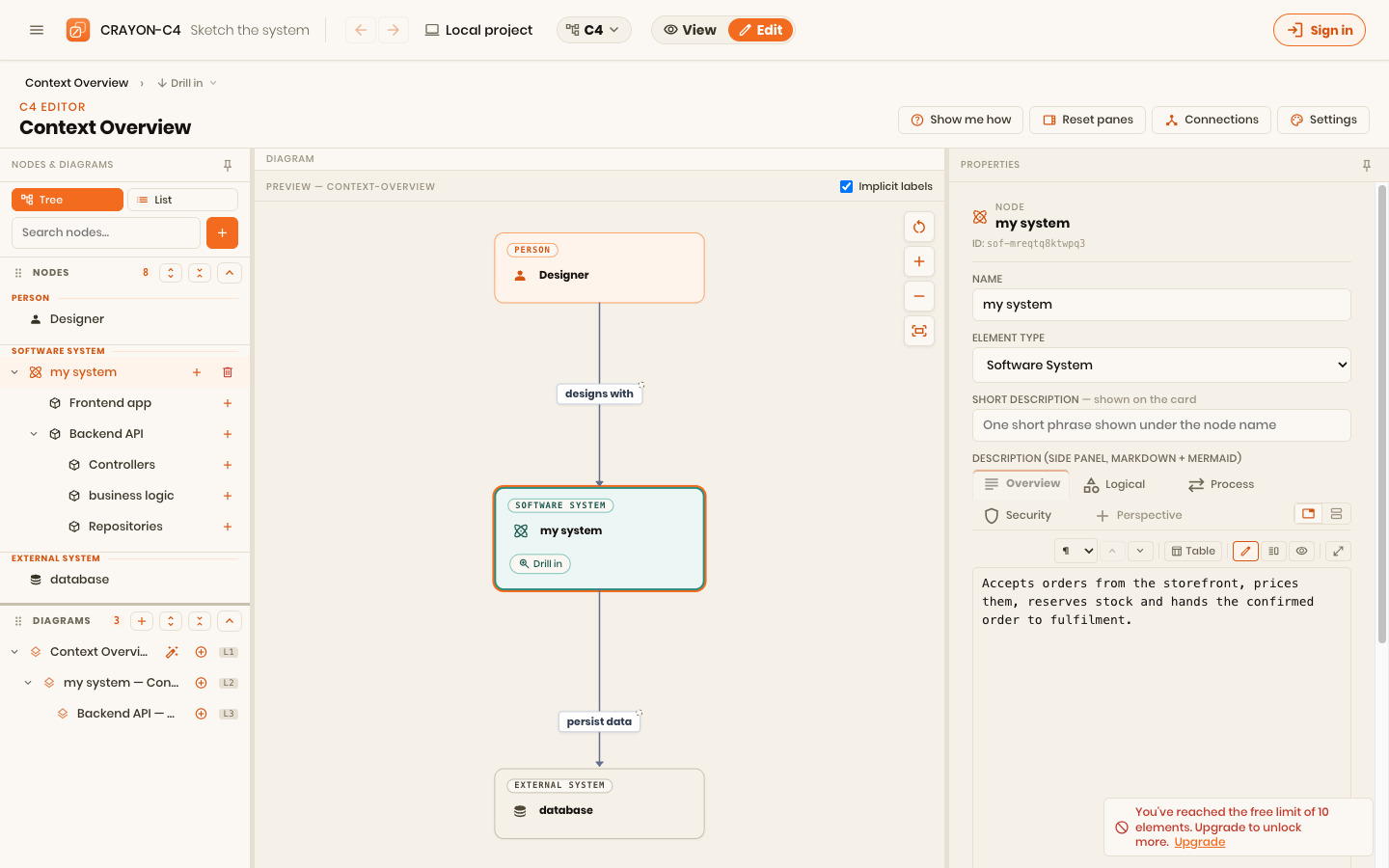
Select an element and look at its Description field in the right-hand pane. Above the editing box is a strip of tabs. Overview is always there — it is the part of the description that belongs to no perspective, and it is what a reader sees first.
A description you have never split shows only Overview and + Perspective, with a line explaining what perspectives are. Nothing has changed about how you write it.
Step 2 — Add a perspective
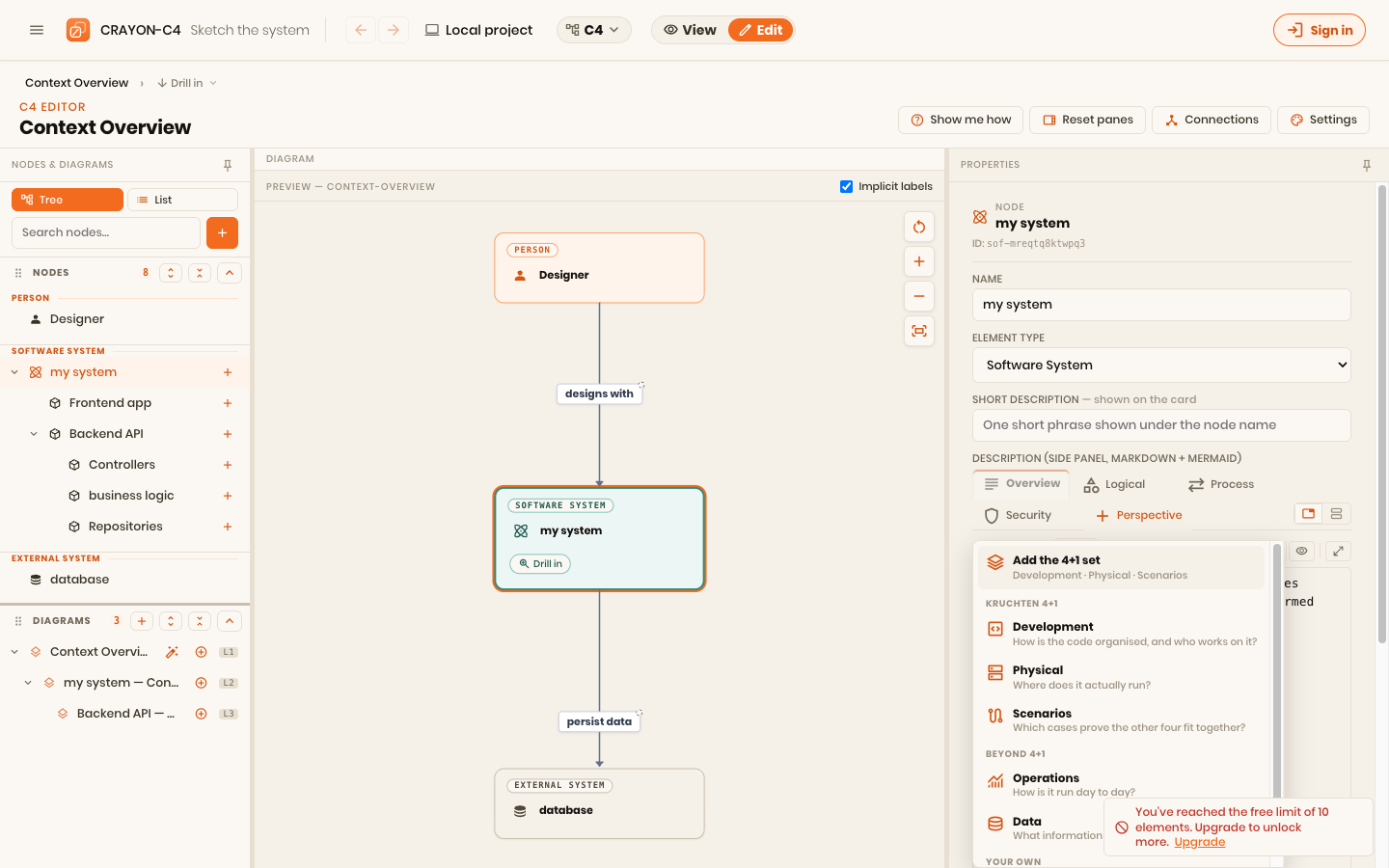
Click + Perspective. The menu leads with Add the 4+1 set — the five Kruchten views in one click — then offers each preset on its own, with the question it answers underneath. Name it yourself… at the foot takes any label your team already uses.
Step 3 — The outline is already there
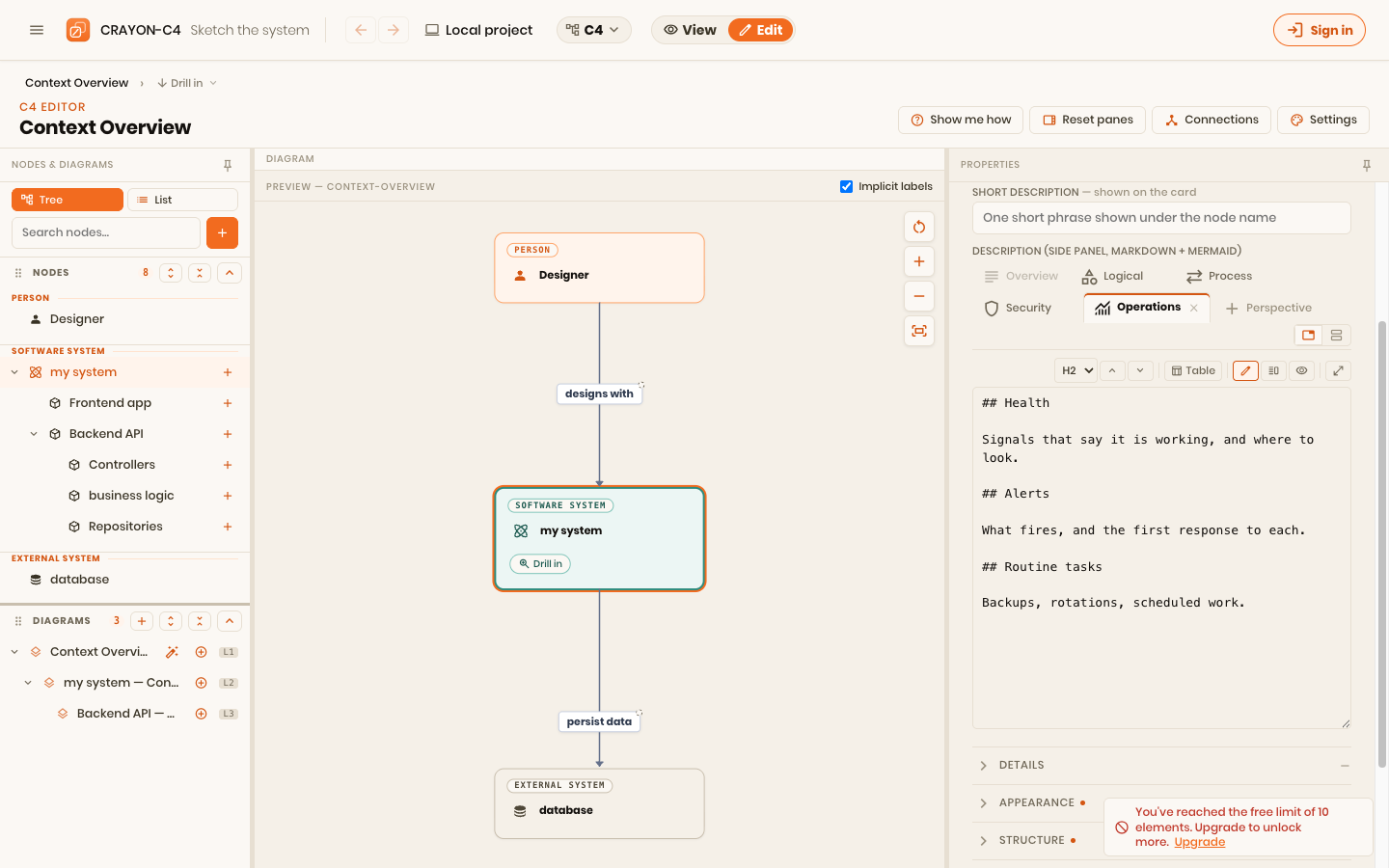
The new perspective opens with a starter outline already written in: the headings that belong there and a one-line prompt under each. Overwrite the prompts as you go — they are ordinary markdown, not a template you have to keep.
Everything the description editor already does works inside a perspective: headings, tables, code, mermaid diagrams, the split preview and the pop-out editor.
Managing perspectives
Everything you can do to a perspective is on its own tab — there is no second row of controls:
| To do this | Do this |
|---|---|
| Open it | Click the tab |
| Rename it | Double-click the tab and type over the name |
| Remove it | Click the × that appears when you point at the tab |
| Reorder them | Drag one tab onto another |
A tab whose section is still empty is drawn faded, so you can tell "nothing written yet" from "I have not opened that one".
Removing a perspective asks what to do with its text. If the section has content, you get three answers: Keep the text (it moves into the Overview, so nothing is lost), Delete the text too, or Cancel. An empty perspective is removed without the question.
Reading them all at once
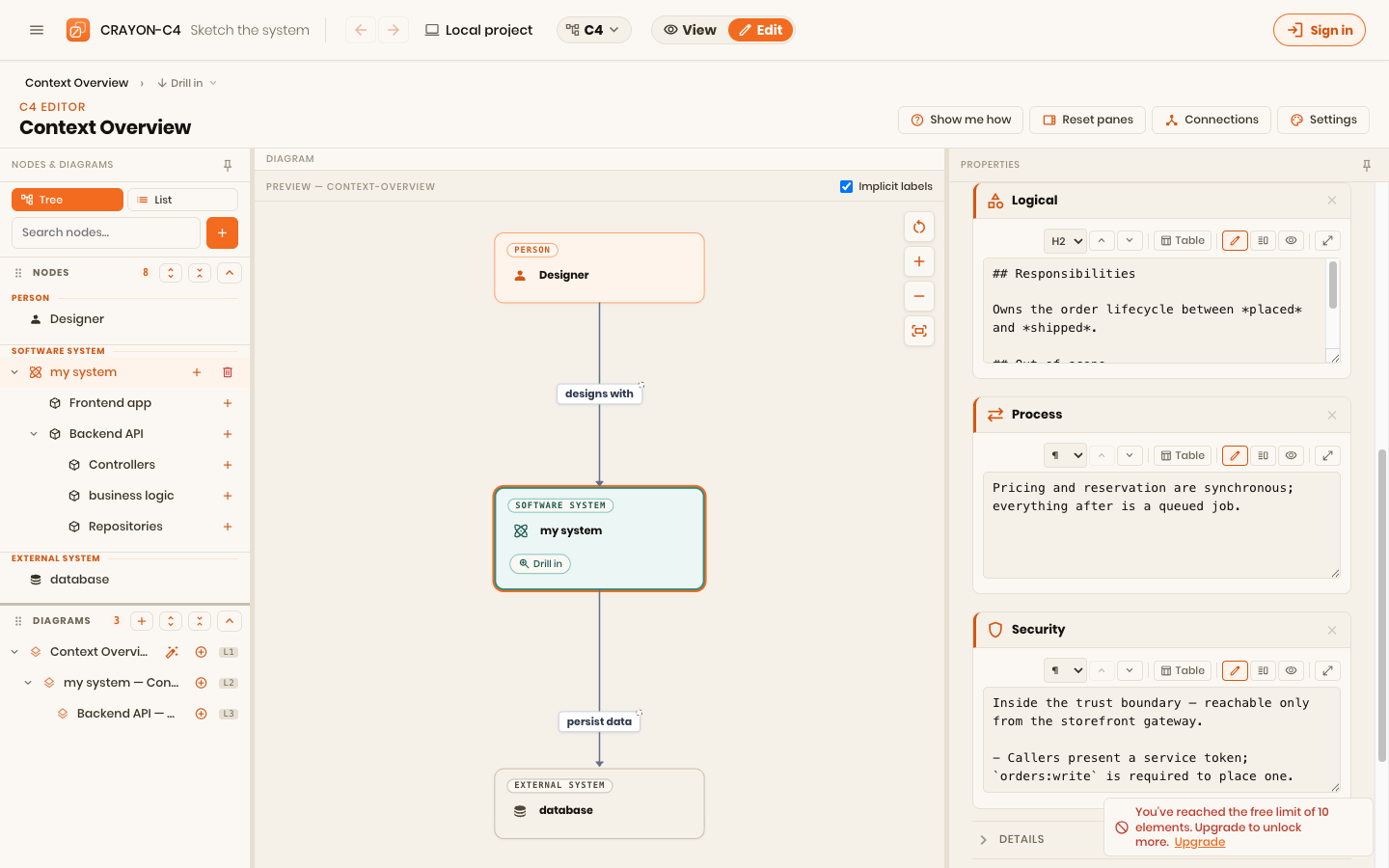
The two small buttons at the right of the tab strip switch how perspectives are shown:
- Tabs — one at a time. Best in a narrow properties pane.
- Sections — all of them, one under the next. Best for reading a description through, or comparing two perspectives without clicking between them.
This is a reading preference, remembered on your machine and applied everywhere. It is not part of the project, so switching it never marks your work as changed and never becomes something a teammate has to merge.
What a reader sees
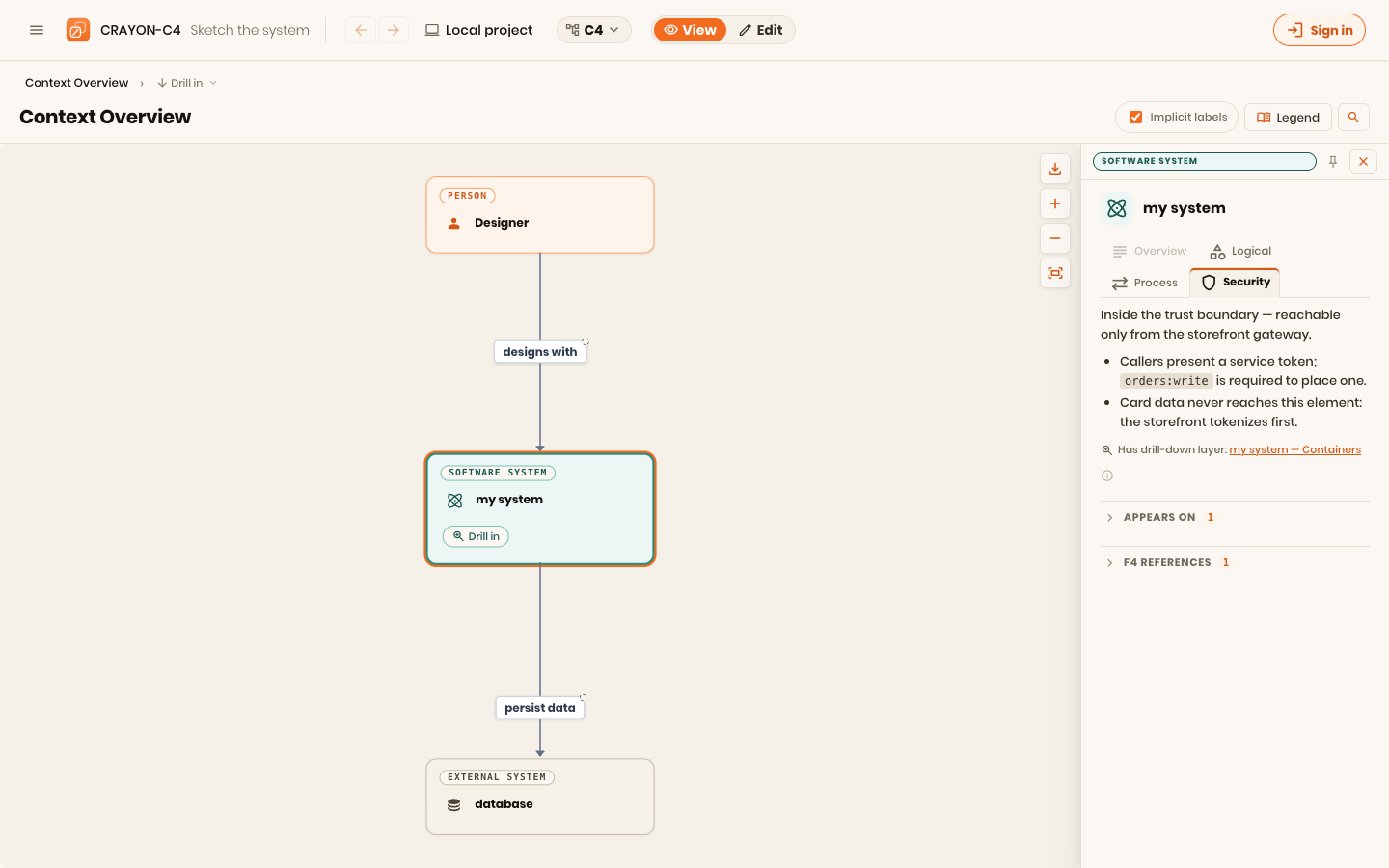
In the viewers, the same strip appears in the side panel — same order, same names, no editing. A reader picks the perspective they came for instead of scrolling past three that are not for them.
A description with no perspectives shows no strip at all, exactly as before.
Perspectives on a connection
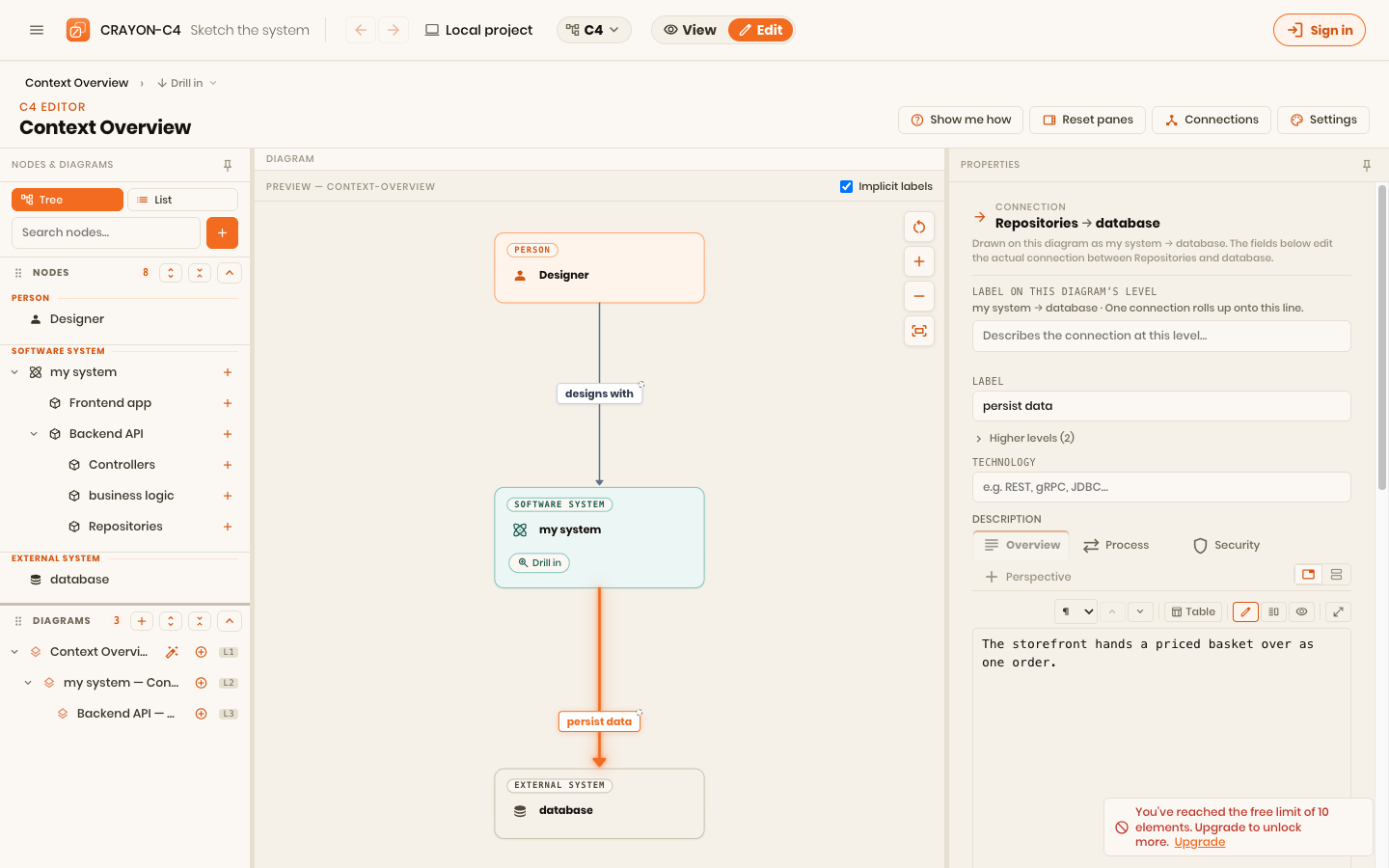
Connections have descriptions too, and they benefit most — a line between two boxes is exactly where the runtime and security questions live. Select a connection on any canvas and its Description field carries the same strip.
A useful split for a connection:
- Overview — what crosses this line, in one sentence.
- Process — protocol, timeouts, retries, idempotency, what happens when the far end is down.
- Security — what authenticates the caller, what is encrypted, what must never travel this way.
How it is stored — and why nothing else sees it
Perspectives are stored inside the description itself, as HTML comments:
Accepts orders from the storefront, prices them, and hands the
confirmed order to fulfilment.

<!--crayon:view Logical-->

Owns the order lifecycle between *placed* and *shipped*.

<!--crayon:view Security-->

Inside the trust boundary — reachable only from the storefront gateway.
That choice matters for three reasons:
- Your model does not grow. No new fields, no new elements. A description is still one markdown string in the field it has always been in, so perspectives travel through export, import, backup, sharing, the CLI and the VS Code extension with nothing to configure.
- Every other markdown viewer ignores the markers. GitHub, VS Code, Obsidian and pandoc all treat
<!-- … -->as a comment and draw nothing for it. Paste the text above into a README and you get three ordinary paragraphs — no stray syntax, nothing to explain. - Nothing is trapped. Remove every perspective and you are left with plain prose, unchanged.
You can write the markers by hand if you prefer — one on its own line, <!--crayon:view Name--> — and the app will pick them up.
Exporting one perspective — a security document, a functional one
This is where the split pays for itself. A PDF or Markdown export has no tabs to offer, so each perspective is given a real heading there — but you also get to choose which perspectives go in at all.
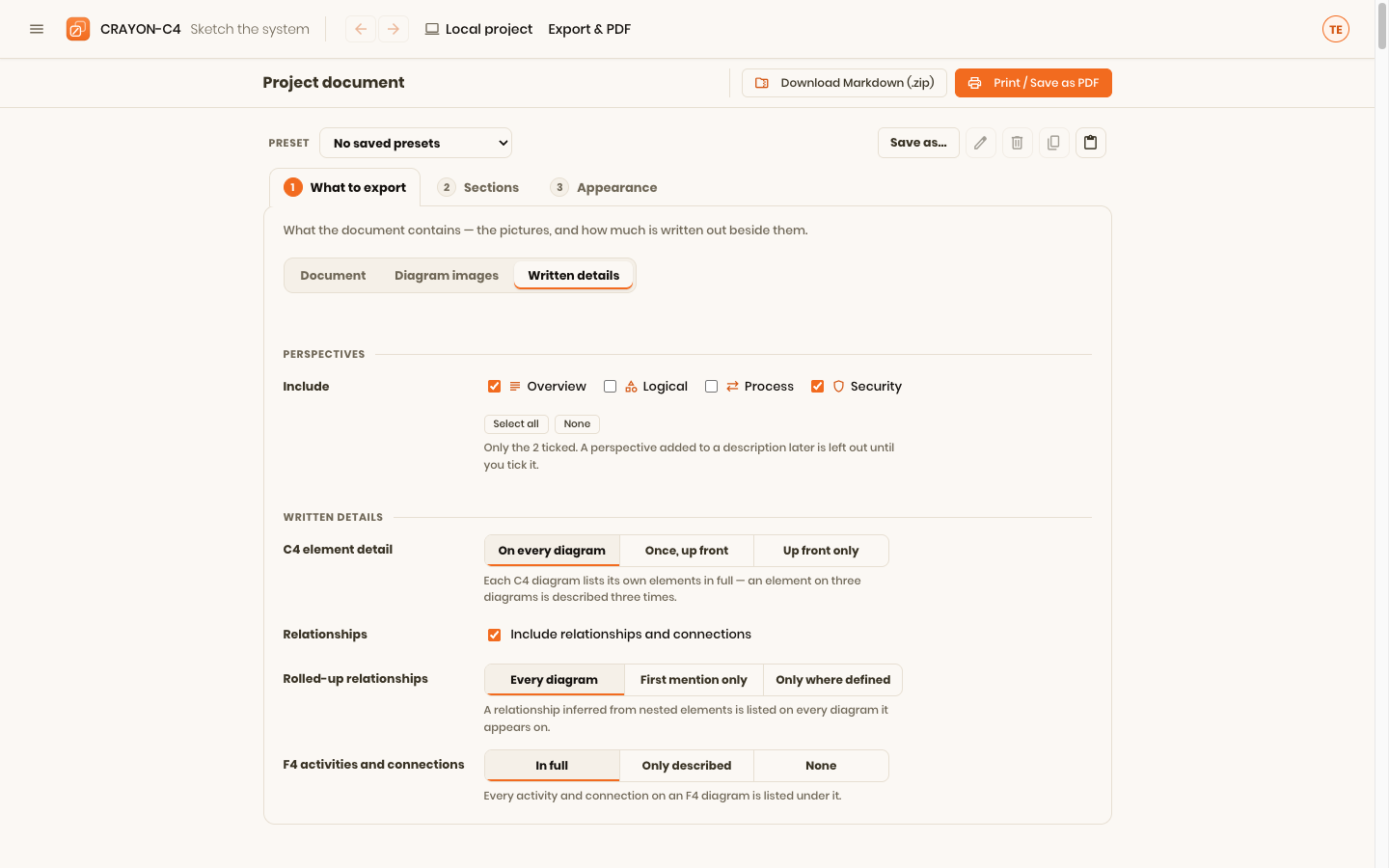
On the Export screen, open 1 What to export → Written details. The Perspectives group lists every perspective your descriptions actually use — scanned from the document itself, so it is your project's list, not a fixed one.
Tick what the reader needs:
| Ticked | You get |
|---|---|
| Everything (the default) | The full document, as before |
| Overview + Security | A security document — each element's summary and its threat model, nothing else |
| Overview + Logical | A functional document — what everything does, with no runtime or security prose |
| Overview + Process + Physical | An operations handbook |
| Any combination | The document that combination describes |
Every version is generated from the one model, so there is no second copy to keep current. Change a threat model once and the security document is right the next time you export it.
Two things worth knowing:
- The diagrams do not change. Perspectives narrow the prose only, so switching them never re-renders a picture and never slows the export down.
- A curated selection stays curated. With everything ticked, a perspective you add later is included automatically. Once you untick even one, the selection means exactly these — so a new perspective stays out until you tick it. The panel says which of the two you are in.
Save the combination as an export preset (the bar above the steps) and "the security document" becomes one click, every time.
A description you never split exports exactly as it did before.
Choosing how far to split
A few rules of thumb:
- Do not split everything. Most elements deserve a good Overview and nothing more. Reach for perspectives when a description is genuinely serving different readers.
- Split the important boxes deeply. The two or three elements at the heart of your system are where a Security or Process perspective earns its keep.
- Keep the Overview complete on its own. Someone who reads only that should still understand what the element is. Perspectives add depth; they do not carry the summary.
- Use your own names when the presets do not fit. "Cost", "Compliance", "Migration" are perfectly good perspectives if that is what your team asks about.
Where next
- Working in the three editors — the shared pane layout these fields live in.
- What each diagram is for — which diagram should carry a given description in the first place.
- Decisions (ADRs) — when the why behind a description deserves a record of its own.