Tour of the app
The whole story first: CRAYON-C4 has three diagram types, and each gets two screens — a viewer for reading and a matching editor for changing things. A hamburger menu in the top-left corner of every screen jumps between all of them. Your work saves itself in your browser as you go, and a built-in demo project lets you explore a fully worked example before you draw anything yourself.
The screens
| Screen | What you do there |
|---|---|
| C4 viewer | Read structure diagrams, click elements for details, drill into deeper levels |
| C4 editor | Add and arrange elements, connect them, manage levels |
| Deployment viewer | Read "what runs where" per environment |
| Deployment editor | Build environments, place infrastructure and running instances |
| Flow (F4) viewer | Read process flows lane by lane |
| Flow (F4) editor | Build lanes, activities, and connections |
Take the tour
If you prefer a guided walkthrough, launch the product tour from the navigation menu (top-left hamburger) → Take the tour. It starts at the projects hub, first shows how the hamburger menu reaches every viewer and editor, then visits each of the six screens in turn — opening the menus and dialogs it talks about so you see the real thing. It takes a few minutes, and every step tells you how to get back to what it shows. You can also find "Show me how" buttons in any empty-state view if you get stuck.
The three-pane editors
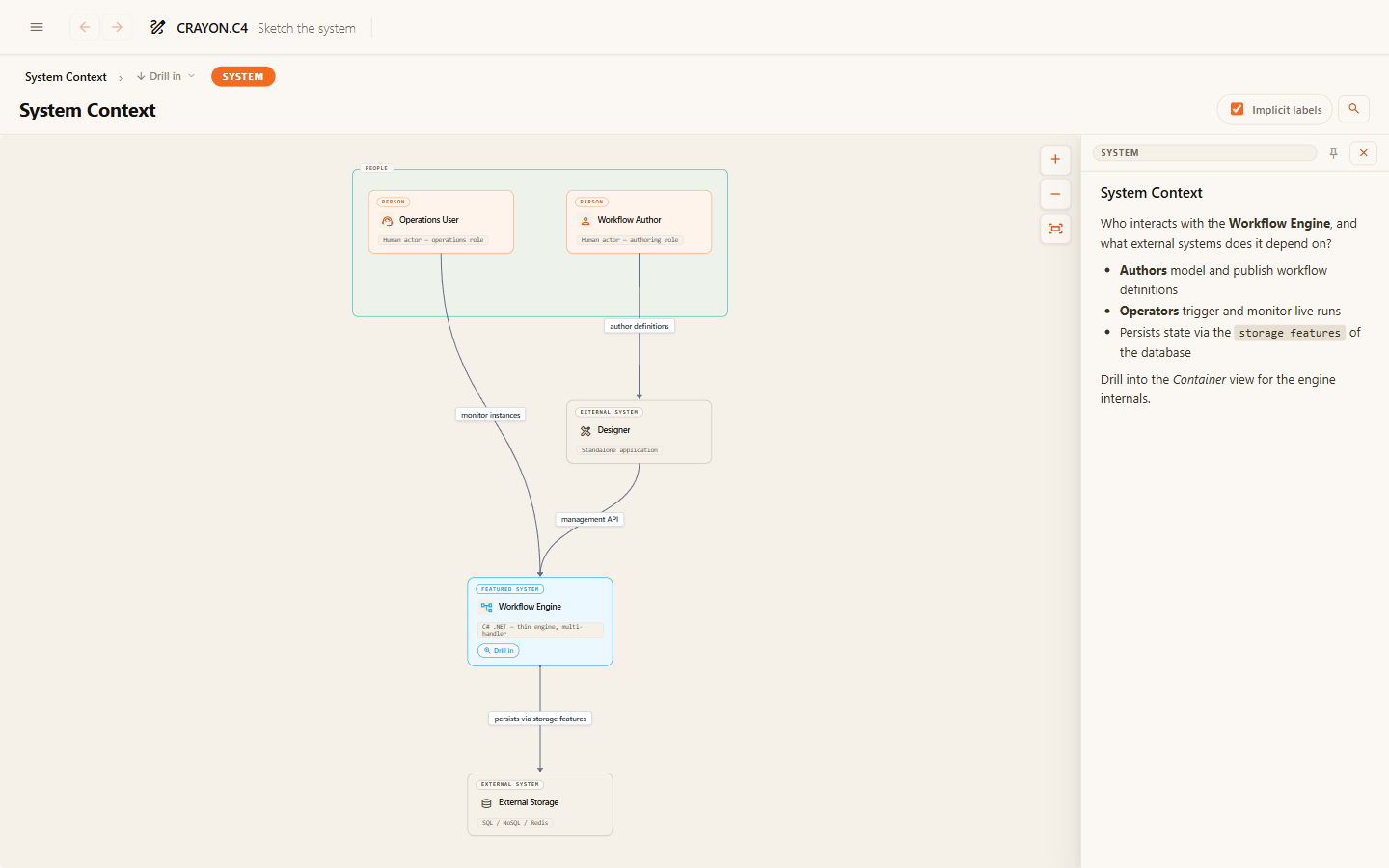
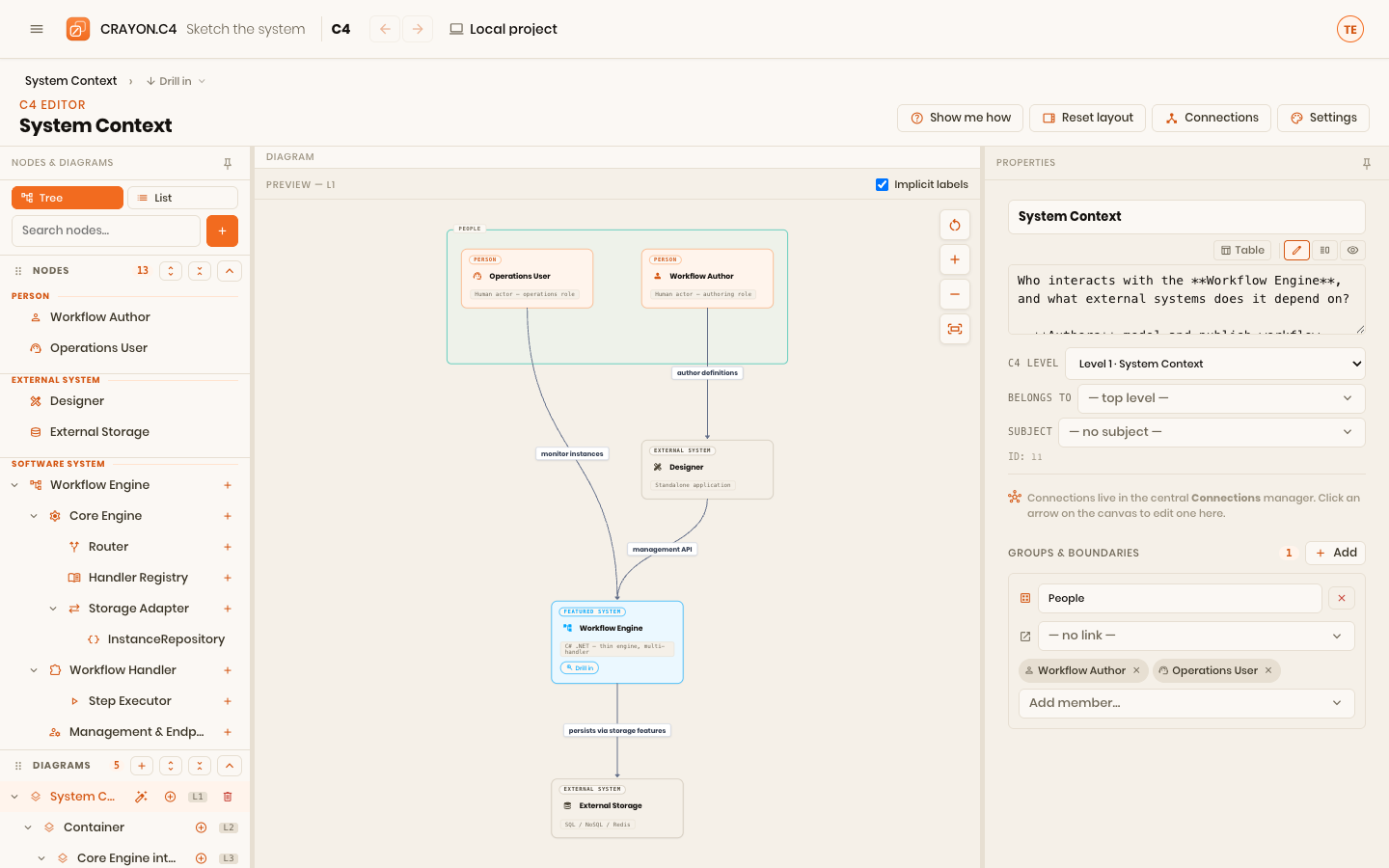
Every editor uses the same three-pane layout: a tree of everything in the diagram on the left, the canvas in the middle, and a details form for the selected item on the right.
The demo project
The fastest way to learn is to look at a finished example. The demo project contains a small but complete model — structure, deployment, and flows — that all the guide pages in these docs use for their screenshots.
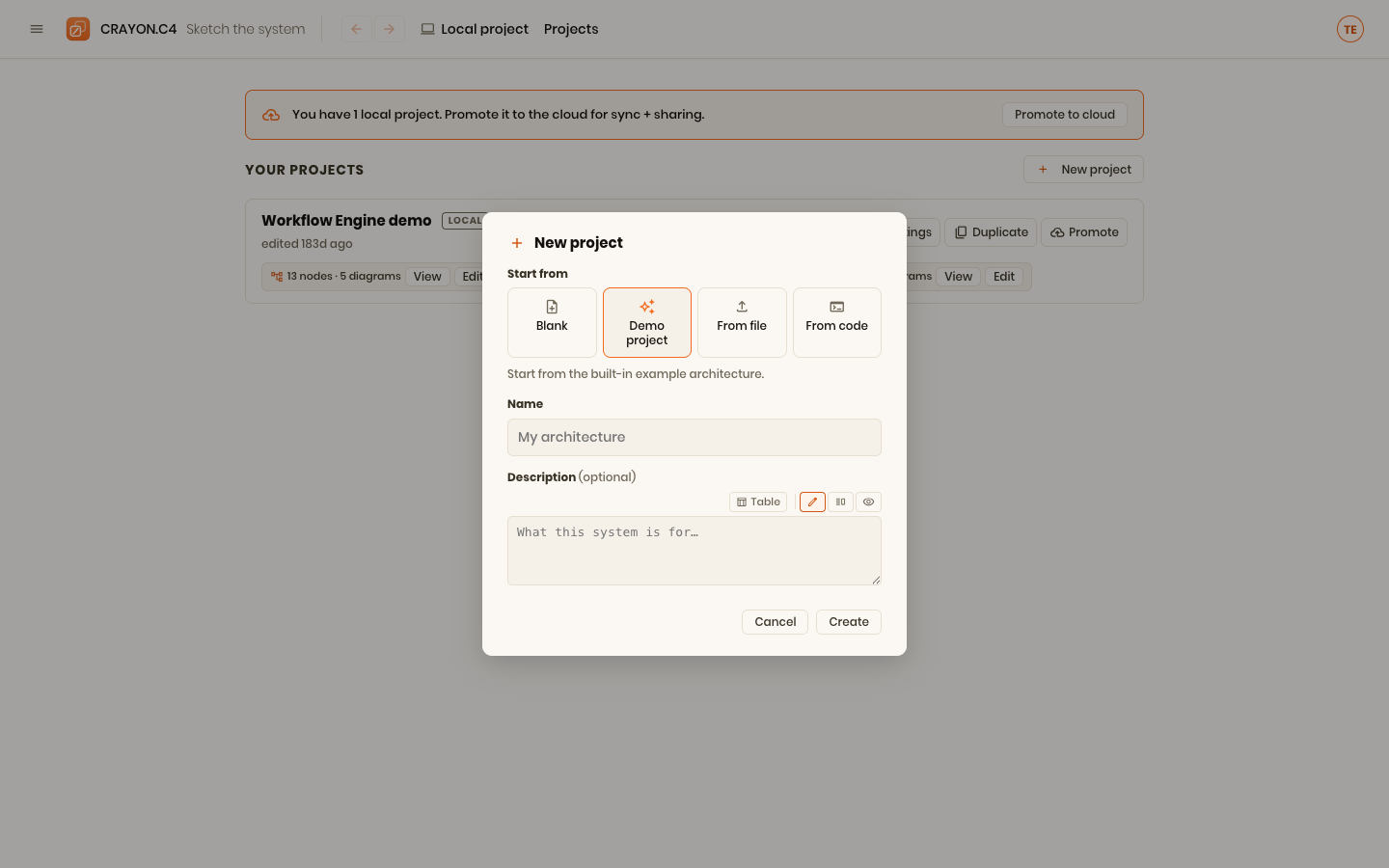
To load it: go to Projects, click New project, then choose Demo project from the source picker. The demo is created as a new project of its own — whatever you were working on stays untouched.
Where your work lives
Everything you draw is saved automatically in your browser — no account, no save button. That storage belongs to this browser on this machine: a different browser or computer starts empty.
Exporting your work as JSON — and importing it back — is available straight away, without an account, so nothing you draw is ever trapped in one browser.
When you need more, you can sign in:
- a free account raises how much you can edit: more model elements, and more diagrams per project;
- the Pro version saves projects to the cloud, syncs across machines, and adds team benefits.
Worth knowing before you hit anything: generating a model from your code, and reading it, are unlimited on every plan — including with no account at all. A model extracted from a real repository runs to hundreds of elements, and you can bring it in, open it, drill through it and export it whatever plan you are on. The limits above govern how much you may edit, never how much you may hold or read.
The Projects & sharing section covers all of this, and Your plan lists the current numbers.
Where next
- Your first diagram — build something in ten minutes.
- The three views of a system — which diagram answers which question.