Connect the infrastructure
Boxes placed on infrastructure still don't tell the reader what talks to what. Connections between nodes or instances complete the picture: traffic paths, protocols, and the plumbing in between. You can also show inferred connections that derive from your C4 model and flag unmatched connections where deployment differs from the logical architecture.
Step 1 — Add a connection
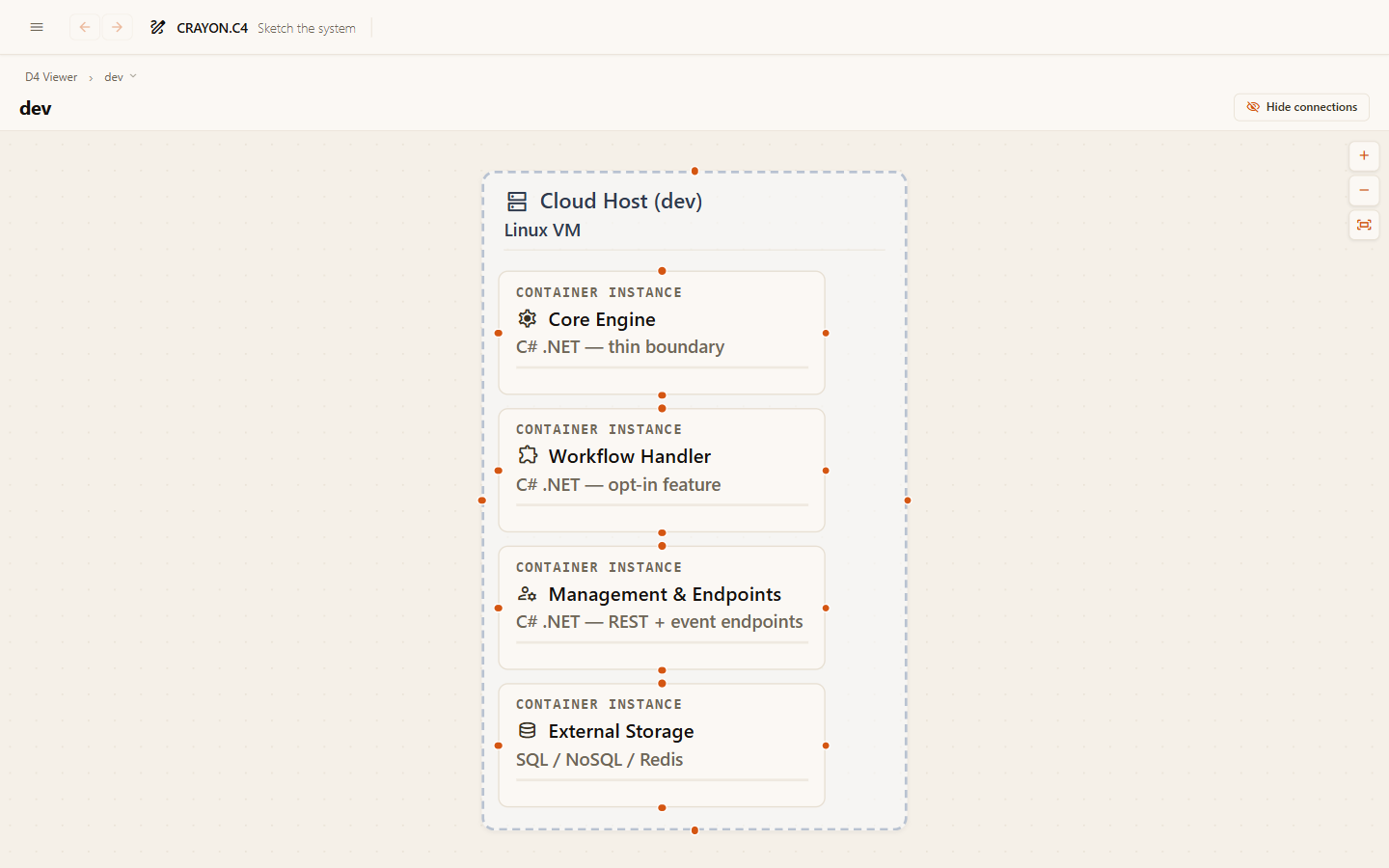
In the deployment editor, add a connection from the source node or instance to its target.
Step 2 — Label for clarity
Label it with the transport where it matters: "HTTPS", "TCP 5432", "AMQP". A labeled connection tells the reader not just "they talk" but "how".
Step 3 — Check direction
Check each connection reads in the direction of who initiates, same as a C4 relationship. The arrow points from the source to the target.
Reconnect a connection's endpoints
Select a connection on the canvas to open its form on the right. The "From" and "To" dropdowns let you re-point the connection to a different node or instance without deleting and recreating it. When you reconnect, the label, technology, and description carry over.
Alternatively, select the connection and drag either endpoint on the canvas to a new target. The endpoint snaps to the target's connection handle.
The same form carries a Line style field — the project-wide connection styles (colour, width, solid/dashed/dotted) shared with the C4 and F4 diagrams. See Connection line styles.
Choose the sides, and route a line by hand
The router decides where every line goes, and on a dense deployment diagram you often know better which corridor a line should take. Two overrides, both in the selected connection's Line section and on the line itself:
- Sides — pin each end to a side of its element (Auto, Top, Right, Bottom, Left), or drag the endpoint onto the side you want. Dragging it onto a different element still re-points the connection.
- Hand routing — drag the line anywhere along its length to bend it there, then drag its round corner handles, slide a straight section by its bar, or double-click a corner to remove it. Remove the last one, or press Back to automatic routing, and the router takes over again.
→ Shape a connection by hand is the full guide, with pictures — the gestures are identical on the C4 and deployment canvases.
Two things specific to deployment:
- A side is stored on the connection's own endpoint, so it travels with the connection rather than being remembered per diagram.
- A line drawn inside an instance is routed once. Connections between two children of the same instance belong to the instance, not to one environment, so the route you draw is drawn identically in every copy of that instance, in every environment — exactly like the children it connects. Everything else belongs to its environment, and is routed there.
Hide or show connections
In the editor and viewer toolbars, one Show connections / Hide connections toggle controls whether connection lines are drawn at all — hiding removes every line, explicit and inferred alike. This is useful when you're focusing on the infrastructure topology and the lines are cluttering the view.
While connections are shown, two independent checkboxes sit next to the toggle: Mark unmatched and Mark inferred (both covered below). They add markings on top of the normal picture; unticking them never removes your real connections.
You can also hide or show individual connections by selecting one, opening its form, and clicking Hide connection or Show connection.
Mark inferred connections from C4
Your C4 model holds the logical relationships — the API talks to the database, the frontend calls the API. If those C4 containers map to instances on your deployment diagram, those relationships can show up automatically as inferred connections, drawn as dotted lines. Tick Mark inferred (available in both the editor and the viewer) to overlay them. Inferred connections let you spot when the deployment topology is missing a logical path — if every C4 relationship should cross the network, inferred connections make gaps obvious.
When an inferred connection is real and permanent (not just a test path), promote it: in the editor, click the dotted line to select it — its panel explains where it comes from and offers Add as deployment connection, which turns it into a real, editable connection carrying the C4 label and technology. Your deployment diagram then owns the decision about transport and labels.
Mark unmatched connections
When you draw a deployment connection whose endpoints both map to C4 nodes (container or system, walked through nested placements), but no C4 relationship covers it, it can be flagged as unmatched. Tick Mark unmatched (editor and viewer) and such connections get a red-bordered label with a warning icon — the line itself stays as drawn. Unmatched connections are fully legal to keep (you might document infrastructure-only paths, or temporary redirects); the warning just marks a gap between your logical model and deployment reality.
To close the gap from the deployment side, select the unmatched connection in the editor: its form shows the warning and offers Add to C4 model, which creates the missing C4 relationship so the two views agree again.
Tips
- Connect the plumbing. Load balancers, gateways, and queues earn their place only when connected — an orphaned infrastructure box is clutter.
- Don't duplicate the logical story. The purpose of the communication lives in the C4 relationship; the deployment connection adds the transport and path.
- Cross-environment connections are a smell. Production calling staging usually means a modeling mistake — or a real problem worth knowing about.
Where next
- Deployment guides overview — the section map.
- Flow guides — the running parts, cooperating in sequence.